

Gaming on a Windows PC is not always about having the most expensive hardware. Your Windows settings, drivers, background applications, network connection, storage and system resources can all affect how smoothly your games run.
The good news is that you don’t always need several paid applications to maintain your gaming PC. A single collection such as Syphon Tools brings together a range of free PC tools that can help you optimize Windows, monitor performance, manage your connection and test your hardware.
Why Windows Optimization Matters for Gaming
Windows runs many services and applications in the background. Some are useful, while others may consume CPU, memory, storage or network bandwidth when you are trying to play a game.
Optimizing a PC for gaming can involve several simple tasks:
- Keeping Windows and device drivers updated
- Reducing unnecessary background activity
- Cleaning temporary files
- Checking storage performance
- Monitoring FPS and system resources
- Testing your internet connection
- Identifying applications using bandwidth
Instead of searching for a separate application for every task, Syphon Tools puts these functions together in one place.
Use a PC Optimizer Before You Start Gaming
One of the first things to check is your Windows configuration.
A PC optimizer can review settings that affect gaming and help identify unnecessary features running in the background. Syphon’s PC Optimizer checks Windows settings and allows users to review recommended changes before applying them.
This can be useful after installing Windows, setting up a new gaming PC or preparing an older system for gaming.
It can also clean temporary files and other common types of system junk, helping you keep unnecessary files under control.
Create a Restore Point First
Windows configuration changes should be made carefully. Creating a restore point before making larger changes gives you an additional way to return to an earlier configuration if something doesn’t work as expected.
Keep Your Graphics Drivers Updated
Graphics drivers are important for modern PC games. NVIDIA, AMD and Intel regularly release driver updates that can include game support, bug fixes and performance improvements.
Syphon Updater is designed to make checking drivers easier by showing the devices and their driver status in one window.
For graphics drivers, it uses official sources from NVIDIA, AMD or Intel. Other drivers can be handled through Windows Update or the appropriate PC or motherboard manufacturer’s support page.
Keeping drivers current is particularly useful when installing a new game that requires recent graphics-driver support.
Check Which Programs Are Using Your Internet
A fast internet connection doesn’t guarantee a stable gaming experience.
Another application may be downloading an update, synchronizing files or uploading data while you’re playing. This can consume bandwidth and potentially affect your connection.
Syphon Limiter lets you see network activity by application. You can identify which programs are downloading or uploading data and manage their internet access.
The tool can also be used to pause selected applications while you play.
This makes it easier to find out whether a background application is consuming bandwidth during a gaming session.
Monitor FPS While You Play
Average FPS doesn’t always tell the whole story.
A game may normally run at a high frame rate but occasionally experience drops that make gameplay feel less smooth. An FPS counter can help you see these changes while you’re playing.
Syphon’s FPS Meter displays live FPS along with CPU and memory information. It can be displayed as an overlay, allowing you to monitor performance without constantly switching back to Windows.
This can also help when comparing different graphics settings. For example, you can change a game’s graphics quality and observe how the frame rate changes.
Test Your Internet Connection
Before blaming a game server for connection problems, it can be useful to test your own connection.
A speed test can provide information such as:
- Ping
- Jitter
- Download speed
- Upload speed
- Public IP address
- Internet provider
Syphon Speed Test measures these values using a real connection test.
Ping and jitter are particularly useful when looking at gaming connections because a high or unstable latency can be noticeable even when download speeds are excellent.
Check Your Network When a Game Won’t Connect
Sometimes the problem isn’t your download speed.
DNS configuration, connectivity or a specific port can also be involved when applications fail to connect properly.
Syphon’s Connection Booster can switch active network adapters to Cloudflare DNS, while Syphon Port Check provides several network diagnostics in one interface.
These tools can help you investigate basic connection problems without needing several separate utilities.
Clean Up Your PC After Removing Games
Gaming PCs often accumulate programs that are no longer needed.
Removing a game or application through Windows doesn’t always mean every related file is removed. Leftover folders, shortcuts and registry entries can remain.
Syphon Uninstaller is designed to find these leftovers after an application’s normal uninstaller has finished.
This can be useful if you frequently install and remove large games, launchers or other gaming software.
Check Your Storage Performance
Your storage drive affects more than just available space.
A slow drive can increase loading times, while a newer SSD can provide substantially faster read and write performance.
Syphon Disk Benchmark can test drive performance using large and small file operations. This can help you compare drives or check whether a newly installed SSD is performing as expected.
For gaming PCs with multiple drives, benchmarking can also help you decide where to install games.
Defragment Hard Drives and Optimize SSDs Correctly
Hard drives and SSDs should not be treated the same way.
Traditional hard drives can benefit from defragmentation because files may become fragmented over time. SSDs use different technology and should be handled with SSD-specific optimization rather than traditional defragmentation.
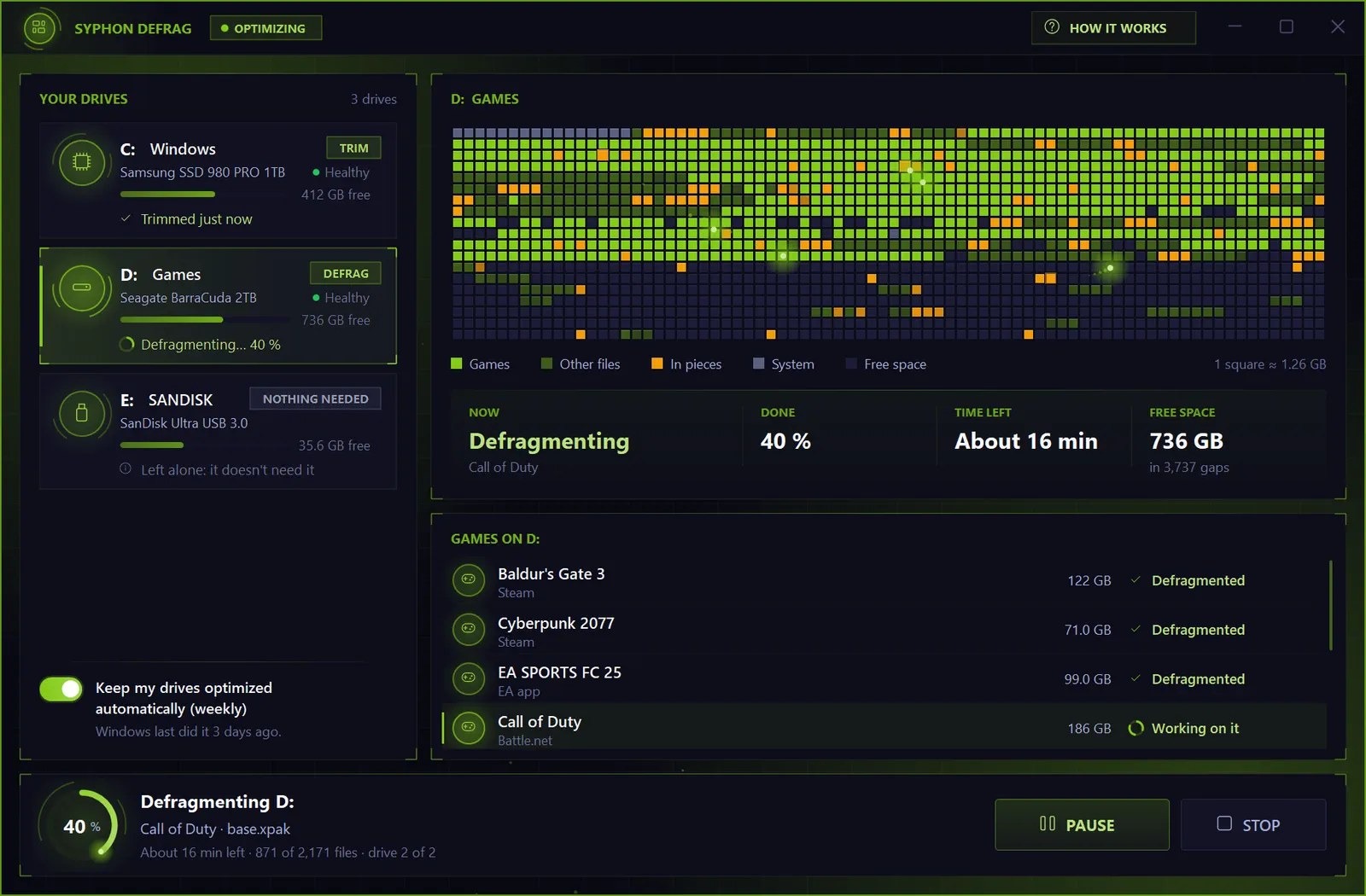
Syphon Defrag detects the type of drive and applies the appropriate operation. It can also identify games from several popular gaming platforms.
The goal is not to magically increase FPS, but to maintain storage performance and potentially improve loading behavior on traditional hard drives.
Test Your CPU Before a Long Gaming Session
If your PC becomes unstable under heavy workloads, a stress test can help identify problems.
Syphon CPU Stress Test can place a configurable load on your processor while displaying information such as CPU usage, clock speed and temperature.
A stress test can be useful after:
- Building a new PC
- Changing CPU cooling
- Adjusting system settings
- Troubleshooting unexpected crashes
- Checking temperatures under load
Because stress testing intentionally increases CPU workload, temperatures can rise significantly. Monitor your system carefully during testing.
Test Your RAM
Memory problems can sometimes appear as crashes, application errors or unexpected instability.
A memory stress test can simulate high RAM usage and show how the system behaves when available memory becomes limited.
Syphon Memory Stress Test allows you to choose a target memory level and adjust it while the test is running.
Keep in mind that a load test and a dedicated memory error scanner serve different purposes. A stress test shows how your PC behaves under heavy memory usage; it isn’t a replacement for every type of RAM diagnostic.
Record Gameplay Without Installing a Separate Recorder
If you want to capture gameplay, tutorials or troubleshooting videos, a screen recorder can save you from installing another application.
Syphon Screen Recorder can record the entire screen, an individual window or a selected area. It also supports game audio, microphone input and webcam overlays.
Keyboard shortcuts make it possible to start, pause and stop recordings while you’re working or playing.
For content creators and gamers, having recording available alongside other PC utilities can make the workflow simpler.
Automate Repetitive Desktop Tasks
Not every useful gaming utility has to improve FPS.
A macro recorder can automate repetitive mouse and keyboard actions for supported applications. Syphon Macro records input actions and allows individual steps to be edited afterward.
Macros should always be used according to the rules of the application or game you’re using. Some games and online services prohibit automation.
One Tool Collection for Everyday PC Maintenance
The biggest advantage of having multiple utilities together is convenience.
Instead of maintaining separate programs for optimization, uninstalling software, driver updates, network monitoring, FPS monitoring, benchmarking and hardware testing, Syphon Tools provides these functions through one Windows application.
That makes it useful beyond gaming as well. The same tools can help with general PC maintenance, troubleshooting and performance monitoring.
Getting Your Gaming PC Ready
A practical Windows gaming maintenance routine doesn’t have to be complicated.
You can start by checking Windows settings with a PC optimizer, making sure your drivers are current and removing applications you no longer use. Then monitor FPS and network activity while gaming.
If something feels wrong, use diagnostic tools to investigate the problem instead of changing multiple settings at random.
For example, if a game feels laggy, check FPS and network activity separately. If applications are crashing, test CPU and memory behavior. If game loading feels slow, examine your storage.
This approach makes it easier to understand what is actually happening on your PC.
Good to know
Is Syphon Tools free?
Yes. Download it, then sign in with a free Syphon account. You can create one in the app or on syphon.tools.
Which Windows versions does it support?
Windows 10 and Windows 11.
Does it update itself?
Yes. It checks for a new version every time it starts.
My antivirus warns about it. Is it safe?
Some scanners guess from how a file looks, and they sometimes flag new programs like Syphon. The downloads page shows the live VirusTotal report for the setup and the app, in the scanners’ own words.
Syphon Tools is free, made for players on ordinary PCs, and grows with every update. Download it at syphon.tools and say hi in the Discord community.
Download Syphon Tools · Join the Discord
